
Play drums and arrange pads
Kit and Pads
In Kit view, tap a drum's centre for a harder hit and near its edge for a softer one. Pads are harder at the top and softer at the bottom. Each fresh finger tap makes a hit. Hold CHOKE and tap a cymbal to stop it. Closed hat and pedal hat stop an open hi-hat.
Edit layout
In Pads, select Edit layout. Add piece chooses a kit piece, including duplicates or Hold choke. Select a pad, drag it to move, or drag its corner to resize. Other pads preview their positions when you make room. Small pads become label-only; larger pads show artwork. Undo reverses a move or resize. Remove deletes the selected pad. Reset layout restores the eight starter pads after confirmation. Done returns to playing.
Scope of layout changes
The pad layout is shared across sessions on this device. Removing or rearranging a pad does not delete recorded hits. Playing options contains touch and layout preferences. The sliders button (Kit) opens sound controls; the Kit mode button returns to the photographed playing surface. Sequencer opens the hit grid.
Record drums
Record starts the count-in, then adds hits as the loop runs. Finish take ends the recording while playback continues. Undo removes the current or most recent completed take. Clear part removes the recorded drum part, not the pad layout.
Playing options
Instrument labels shows names on drums and pads. Mirror layout swaps left and right. Second kick adds a kick drum in Kit view. Fixed hit strength makes every hit the same strength instead of following touch position. Vibration enables hit feedback. These are playing preferences; Kit/Tone opens the sound controls.
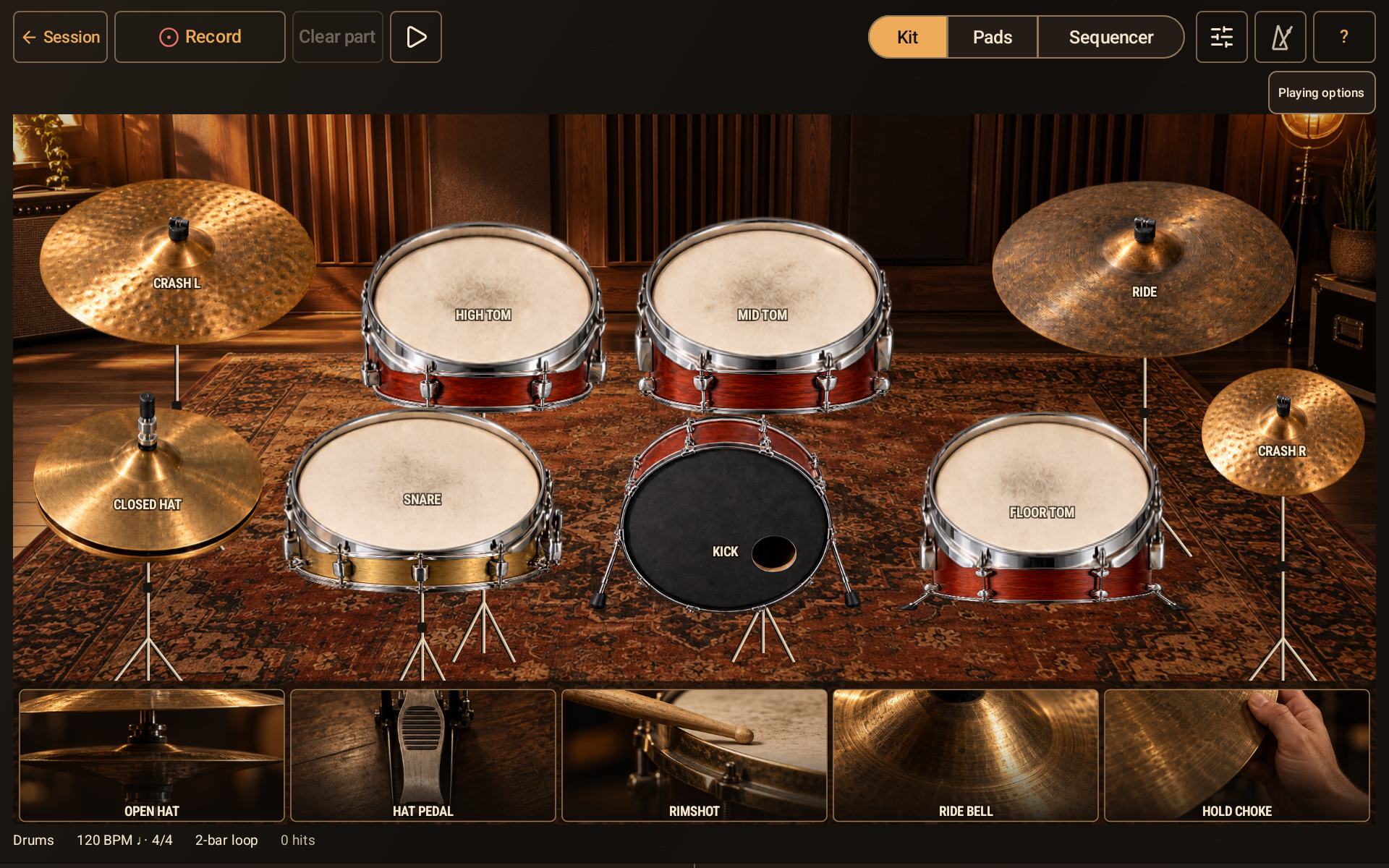
Drum Kit playing surface with Kit, Pads, Sequencer, and playing options.
- Switch between Kit, Pads, and Sequencer.
- Playing options contains labels, mirrored layout, second kick, fixed strength, and vibration.
- Record captures your hits after count-in.