
Enter and edit guitar and bass tab
Select a slot
Open Tab from a guitar or bass, or from Session Home with Premium. Choose the displayed part if needed. Tap a string/time slot in the score. The Selected slot card contains Fret, Length, Value, unit, Use previous, and deletion when a note is selected. Adjacent bars join without a gap; string tuning labels appear at the beginning.
Fret and note length
Fret chooses the fret for the selected slot. Length offers named note values and 1 bar / 2 bars presets; choosing one fills Value and the unit. You can also type a positive numeric Value and choose Beats or Bars directly. A beat follows the time signature's denominator: in 6/8 it is an eighth note. Decimal values are accepted. Invalid or overlapping lengths are not applied; respect the displayed maximum.
Ring across bars
Enter the total duration once. For example, a note at the start of a two-bar 4/4 part can use 2 Bars or 8 Beats. A tie shows its continuation into the next bar without another attack. Length is bounded by the remaining part and other notes on the same string. Extend the instrument's loop from Session Home when more room is needed.
Repeat and revise
Use previous repeats the last note settings at the selected slot. Delete removes selected notes. Undo and Redo restore edits and select the note at the cursor when appropriate. The part selector changes the displayed tab. When you entered from an instrument, Back to instrument retains that return destination.
More and note tools
More contains Practice / all parts, Recording timing, Audition, Select bars, Advanced, Note tools, and Help with this screen. Note tools includes copy/paste and further note editing. Copy selected notes, choose Paste, then tap a destination. Advanced and technique controls work on the selected notes. Tab editing uses one voice; tab PDF/text export is not offered in this version.
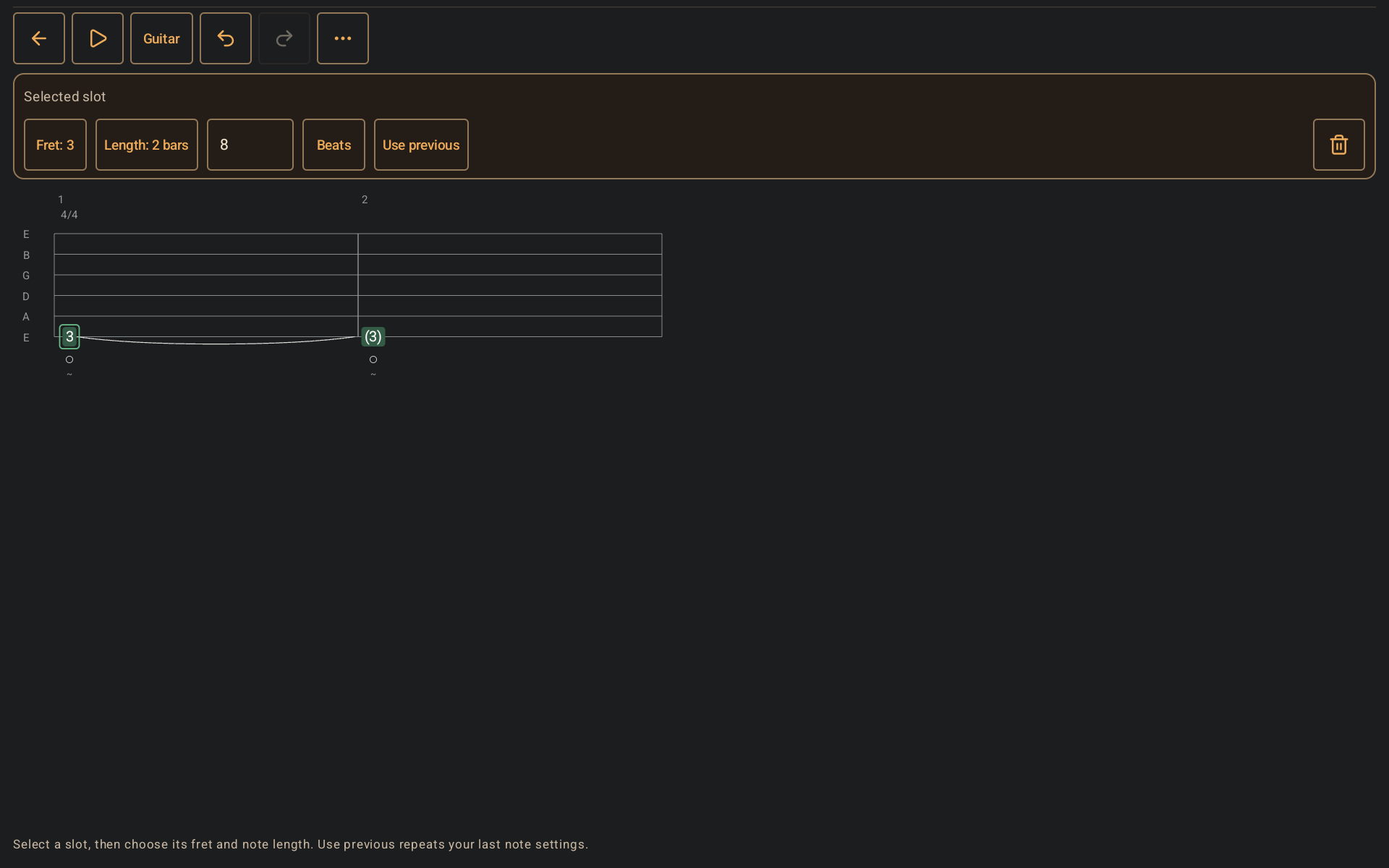
Tab editor with selected-slot controls and one note tied across two adjacent bars.
- Select a string/time slot, then use Fret to choose its pitch.
- Length presets fill the always-visible Value and Beats/Bars controls.
- The tied continuation rings through the next bar without a new attack.